
So you've set up your institute's platform, it looks great, but it's still sitting on a .globalcampustools.com subdomain. It works, sure, but if you want to look completely professional to parents and students, you need your own domain name.
Let's walk through exactly how to hook up your custom domain (like yourschool.com). It takes about five minutes of actual work, though we might have to wait a bit for the internet to catch up.
Quick Heads Up
Custom domains are a feature of the Premium Campus Plan. If you're still on the Free plan, the dashboard will just bounce you over to the billing page when you try to do this. Make sure you're upgraded first!
Step 1: The DNS Stuff (Don't panic)
Before our servers will accept your domain, we need to prove you actually own it. We do this by checking where your domain is pointing.
Head over to wherever you bought your domain name (GoDaddy, Namecheap, Google Domains, etc.) and find the DNS Settings or DNS Management page. You need to add exactly one of these two records.
AThe Root Domain
Use this if you want your site at exactly yourschool.com.
BThe Subdomain
Use this for things like www.yourschool.com or portal.yourschool.com.
A quick note on DNS: It can be annoyingly slow. While it usually updates in 10-15 minutes, the internet's "phone book" can technically take up to 48 hours to update globally.
Step 2: Tell the Dashboard
Once you've saved those settings in your registrar, jump back into your Global Campus Tools Dashboard. Click on the Custom Domain tab.
Type your domain into the box and hit that purple Bind Domain button.
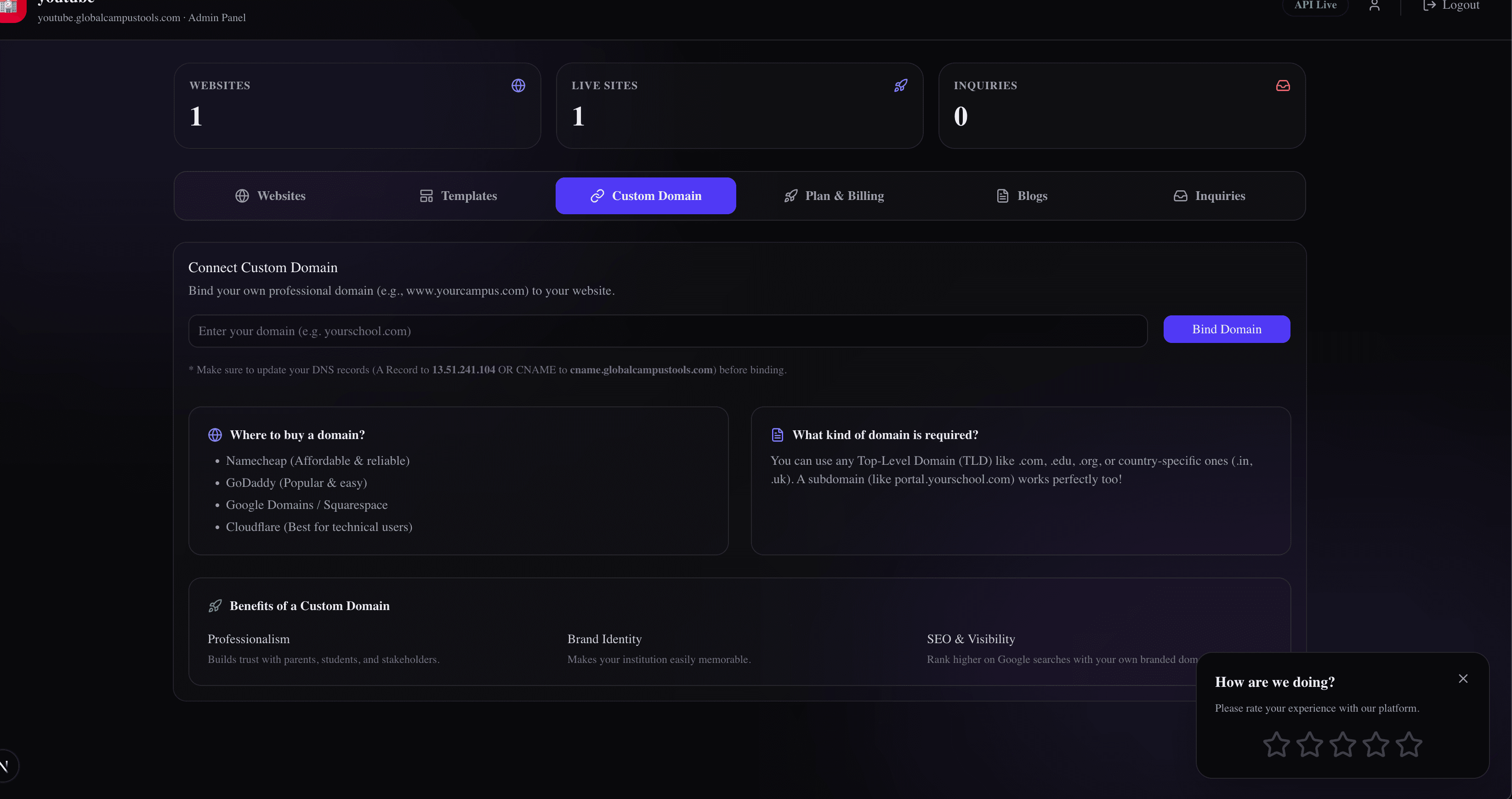
Right when you click it, our backend fires off a live DNS check. It literally queries the internet to see if your domain is pointing to us yet. It will look for the 13.51.241.104 A record or the cname.globalcampustools.com CNAME record.
- If it works:You'll get a success popup! We'll immediately lock the domain to your account and automatically spin up a free SSL certificate so your site is secure (HTTPS).
- If it throws an error:Don't stress. 99% of the time, this just means the DNS hasn't propagated yet. Grab a coffee, wait 20 minutes, and click the button again.
Still stuck?
If you've been waiting for hours and it's still throwing errors, shoot us an email at info@globalcampustools.com. Send a screenshot of your DNS settings page and we'll figure out what's going wrong.